Back to Maintenance Manager for Education Main Menu
Duplicate a Preventive Maintenance Schedule
The Duplicate Preventive Maintenance feature allows Administrators and Technicians to create a copy of an existing preventive maintenance schedule.
To duplicate a preventive maintenance schedule:
-
Navigate to the
 (Preventive Maintenance).
 -
Search or hover over a preventive maintenance schedule in the preventive maintenance list.
-
In the preventive maintenance schedule row, click the
 icon.
icon. -
Click Duplicate.
The Schedule PM page appears.
-
Click the
 button to add asset.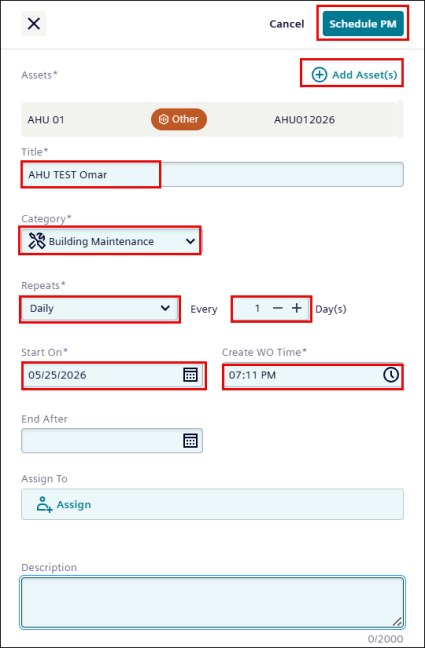
-
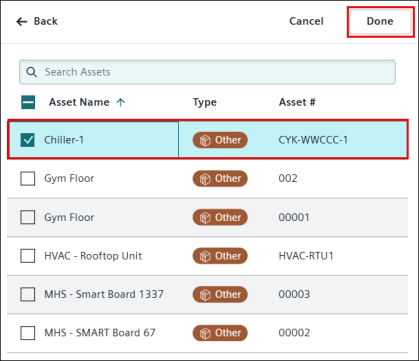
Search for or select an asset from the below asset list.
-
Click Done.
-
Update the Start On and End After dates.
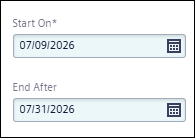
NOTE Start date can only be set to the current date or a future date.
-
Review the pre-populated details.
NOTE The duplicated preventive maintenance schedule is populated with the original schedule details. Asset information must be added separately.
-
Additionally, users can also update the following details.
-
Title
-
Category
-
Repeats
-
Every
-
Create WO time
-
Description
-
NOTE If you are having difficulty entering the fields mentioned above, see Creating a Preventive Maintenance Schedule.
-
Click Schedule PM button at the upper right corner of the page.
NOTE Make sure to update the Start On date as current or any desired future date.
